How to Build an App Without Coding in 2026
Learn how to build a real app without writing code, straight from your phone. Step-by-step guide using omg.dev's design-first, mobile-first AI builder.
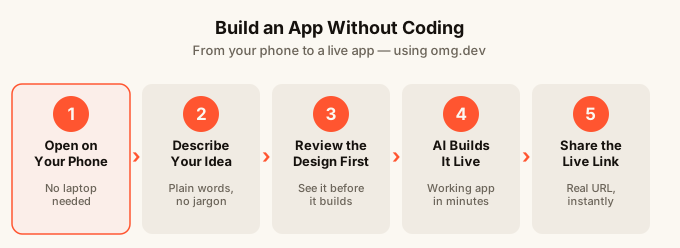
TL;DR
You can build and ship a real app today without writing a single line of code. The fastest path is to describe what you want, review a visual design first, then let the AI build the working version from your approved screens. omg.dev lets you do all of this from your phone, with sign-in, a database, and hosting included from the start. Most first apps go live in under an hour.
Why most people give up before they finish
Building an app used to mean hiring a developer or spending months learning to code. Then no-code tools came along, but most of them still feel like software. Drag-and-drop editors with dozens of panels. Settings buried three menus deep. And you still had to wire up a database, sort out user sign-in, and figure out where your app would actually live on the internet.
People with good ideas give up not because the idea is bad, but because the setup gets in the way.
AI app builders change that. You describe what you want in plain words and the AI writes the code for you. The best ones go a step further and handle all the technical plumbing so you never have to think about it.
This prompt-led way of working is often called vibe coding: you describe the outcome, review what the AI makes, and steer it with plain-language feedback instead of writing each line yourself. The phrase covers both developer tools that expose the generated code and app builders that also package hosting, sign-in, and data. If you do not want to maintain code, that second category is the important distinction.
This guide walks you through how to go from idea to live app, step by step, using omg.dev as the tool.
Step 1: Start from your phone (yes, really)
Most AI app builders are built for a laptop. They open in a browser, they have sidebars and panels, and they feel like software you need to sit down to use.
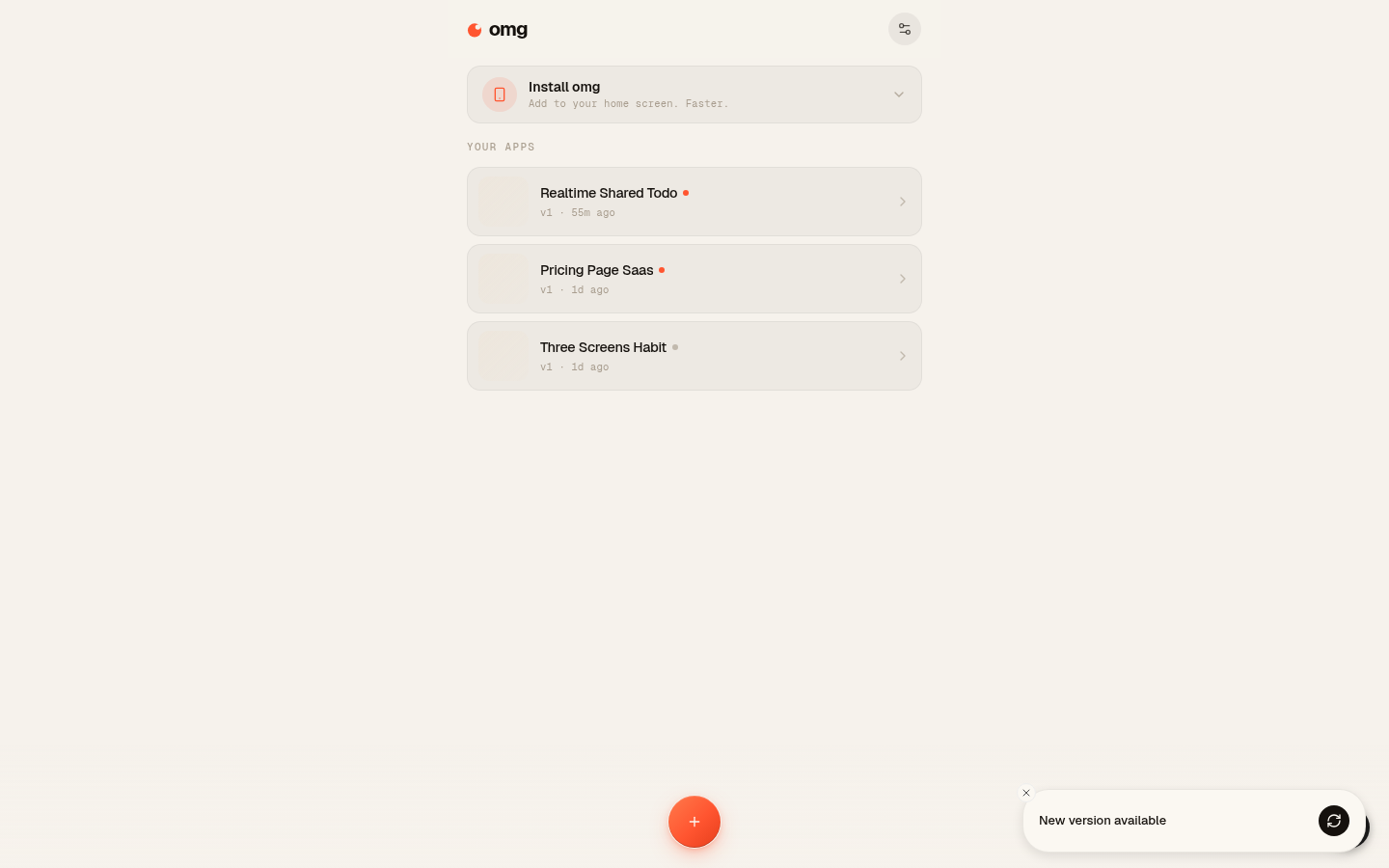
omg.dev was built phone-first. The dashboard installs to your home screen like any other app. You tap a card to open a project, type in the chat bar at the bottom, and scroll through previews with your thumb. Every single step in this guide works on a phone.
Why does that matter? Because ideas don’t wait. You think of something on the train or in the kitchen, and if the tool is only on your laptop you lose momentum. Being able to start immediately, wherever you are, means far more ideas actually become real things.
If you are on your phone right now, go to omg.dev in your browser and look for the “Add to Home Screen” option. It takes ten seconds and it feels completely different from using a website in a browser tab.
Step 2: Write down what your app actually does
Before you type anything into an AI builder, spend two minutes writing a single sentence that describes your app. Not a paragraph. One sentence.
“A shared list where my team can add tasks and see each other’s updates live” is perfect. “A notes app where I can write things down” works. The clearer you are about the core thing the app does, the better the AI can help you.
If you are stuck, think about the one problem you are solving. Who is using it? What do they do in it? What happens after? You do not need to know any technical details. You just need to know the purpose.
A few examples that work well as starting points: a reminder app that sends you a nudge at a specific time, a team poll so your group can vote on options and see results live, a members-only page where people sign in to see content, or a shared to-do list that updates in real time for everyone on it.
Step 3: Use Design mode to see it before you build it
This is the step that most people skip because other tools do not offer it. And it is the step that saves you the most time.
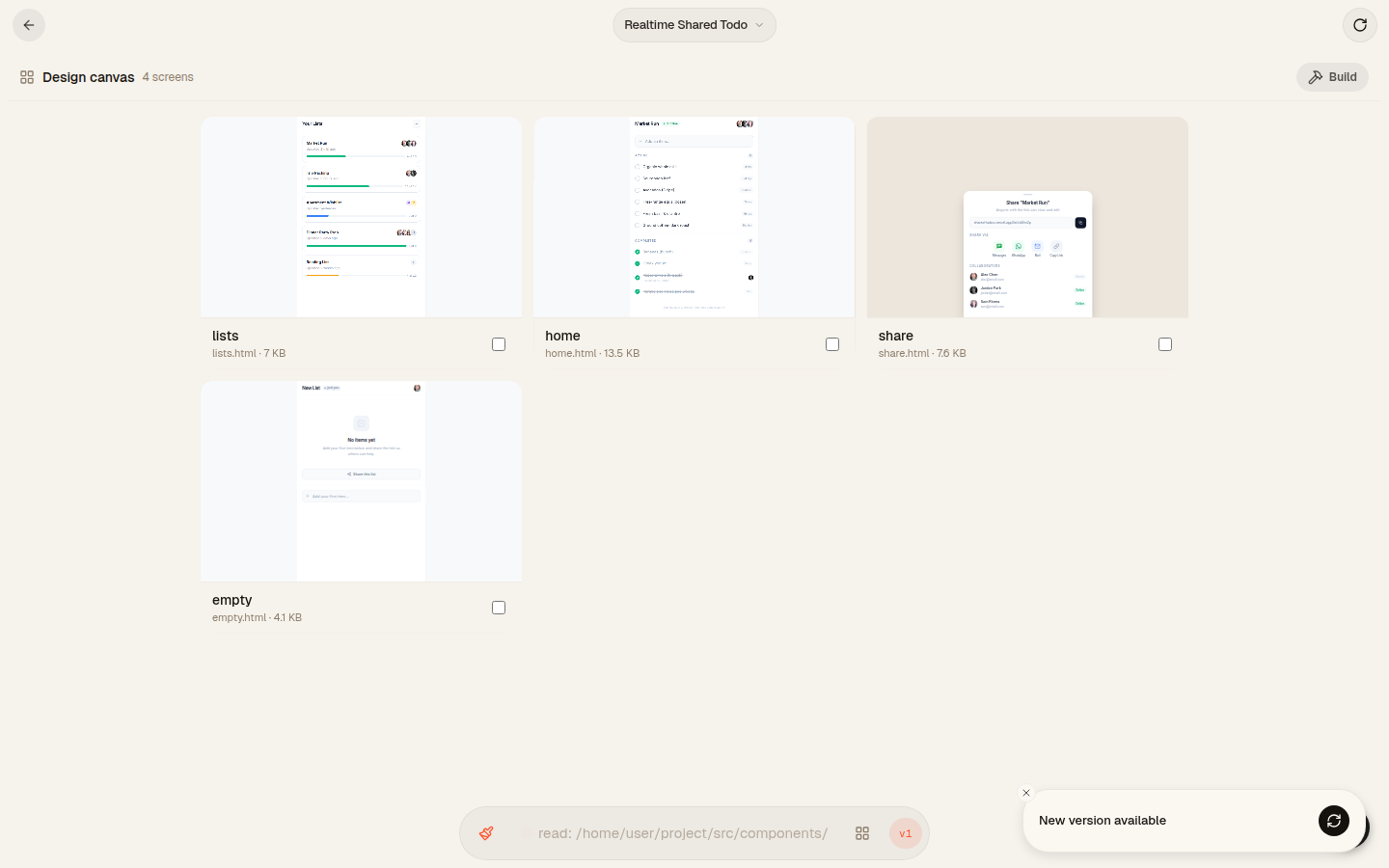
When you start a new project in omg.dev, you get a Design mode. Instead of immediately generating a working app, the AI builds static screens first — visual previews of what the app will look like that you can scroll through before any real building happens.
You describe what you want, and within a minute you are looking at what your app will look like on mobile and on desktop. You can ask for changes. Different colors. A different layout. A simpler header. You make these tweaks now, before the app is built, which costs nothing.
Once you are happy with the design, you tap Build. The AI uses your approved screens as a reference and builds the working version to match. The result looks like what you wanted because you approved it first.
This is the biggest practical difference between omg.dev and most other AI builders. Tools like Bolt or Lovable go straight from your words to a working app. If you do not like the look, you have to describe changes and rebuild, burning time and credits. The design-first approach means you fix the look before any building starts.
Here is what Design mode actually looks like. A real project (“Realtime Shared Todo”) with four screens generated as visual mockups. You scroll through, ask for changes in the chat at the bottom, and only tap Build in the top right when you are happy with the design.
Step 4: Pick a starting template if you have one
If your idea is close to something that already exists, start from a template instead of a blank prompt. Templates are pre-built starting points that you then modify.
omg.dev includes a set of ready-to-go templates. The Multiplayer todo is the most popular one: a shared list where multiple people can add and check off items and see each other’s changes live without refreshing the page. There is also a Streaming chat, a Dashboard with charts and activity cards, a Notes app with live preview, a Members area with sign-in, a Reminders app that fires at scheduled times, a Polls app with live vote counts, a Link in bio page, and a two-player Tic-tac-toe game.
Starting from a template does not lock you in. You describe changes in plain words and the AI adjusts. It is just a faster starting point than a blank screen.
Step 5: Describe changes in plain words
Once you have a working app, every change you make is a conversation. You type what you want in the chat bar and the app updates.
You do not need to know what a “component” is or how a “database query” works. You say things like “add a button that lets users delete their own items” or “change the background to dark” or “show the newest posts at the top” and the AI handles the rest.
A few tips that make this go faster. Be specific about what you see on screen: “the blue button in the top right” is clearer than “the button”. Describe the outcome, not the steps: “when someone adds an item it should appear for everyone immediately” tells the AI what you want, and it figures out how to do it. If something goes wrong, the Versions feature lets you roll back to any previous state.
Step 6: Check that sign-in and data saving are working
This is where most no-code tools used to fall apart. Building a screen that looks like a sign-in form is easy. Making it actually work, saving user accounts, protecting content so only logged-in users see it — that all used to require separate services and technical setup.
In omg.dev, sign-in works out of the box. Users can log in with an email link or their device fingerprint. You do not set this up. It is already there.
The database is also included and already connected. When a user signs up or saves something in your app, it is being stored automatically. You can look at what is saved using the Inspect view — a live table showing exactly what your app has stored, which is useful if something seems off.
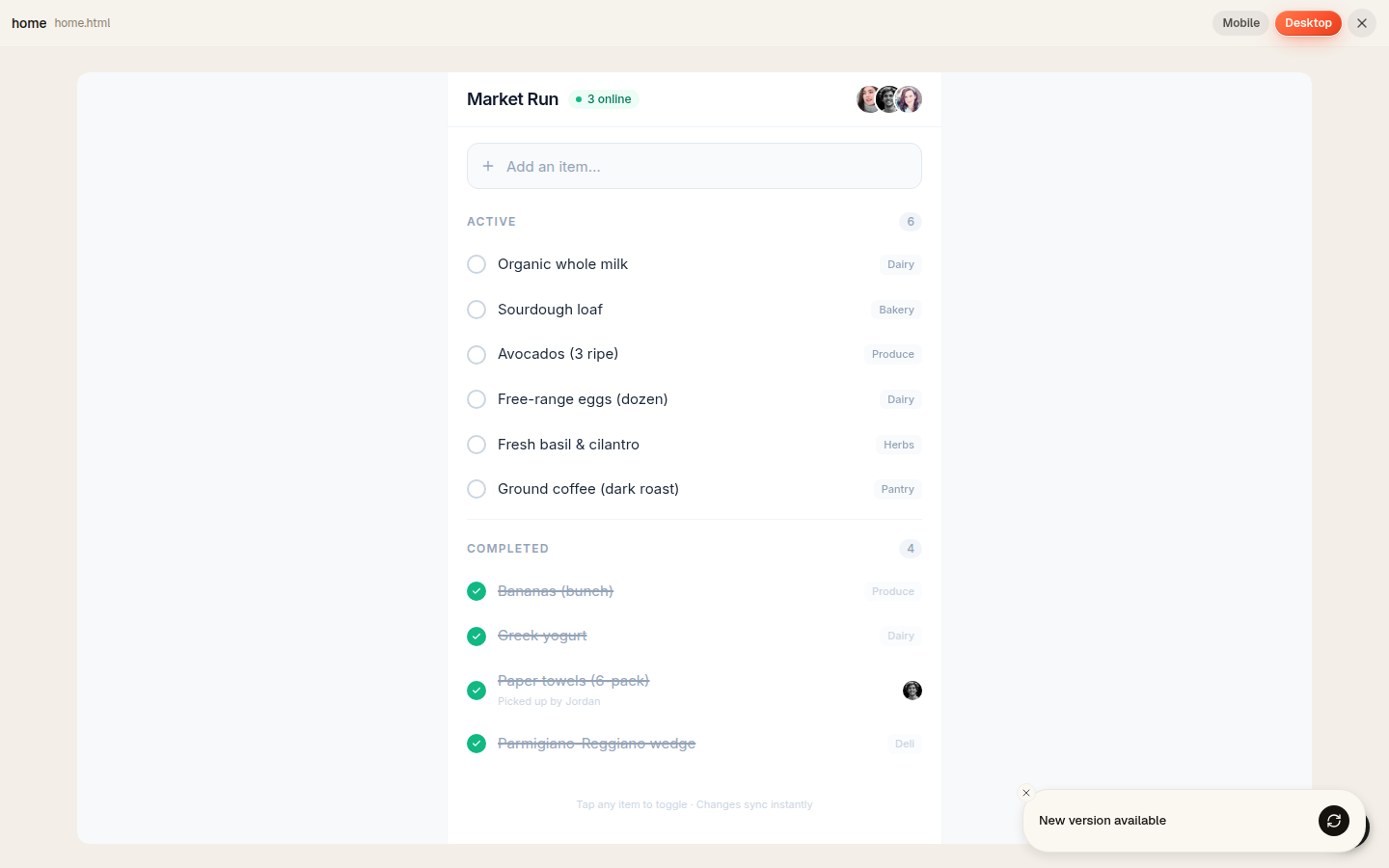
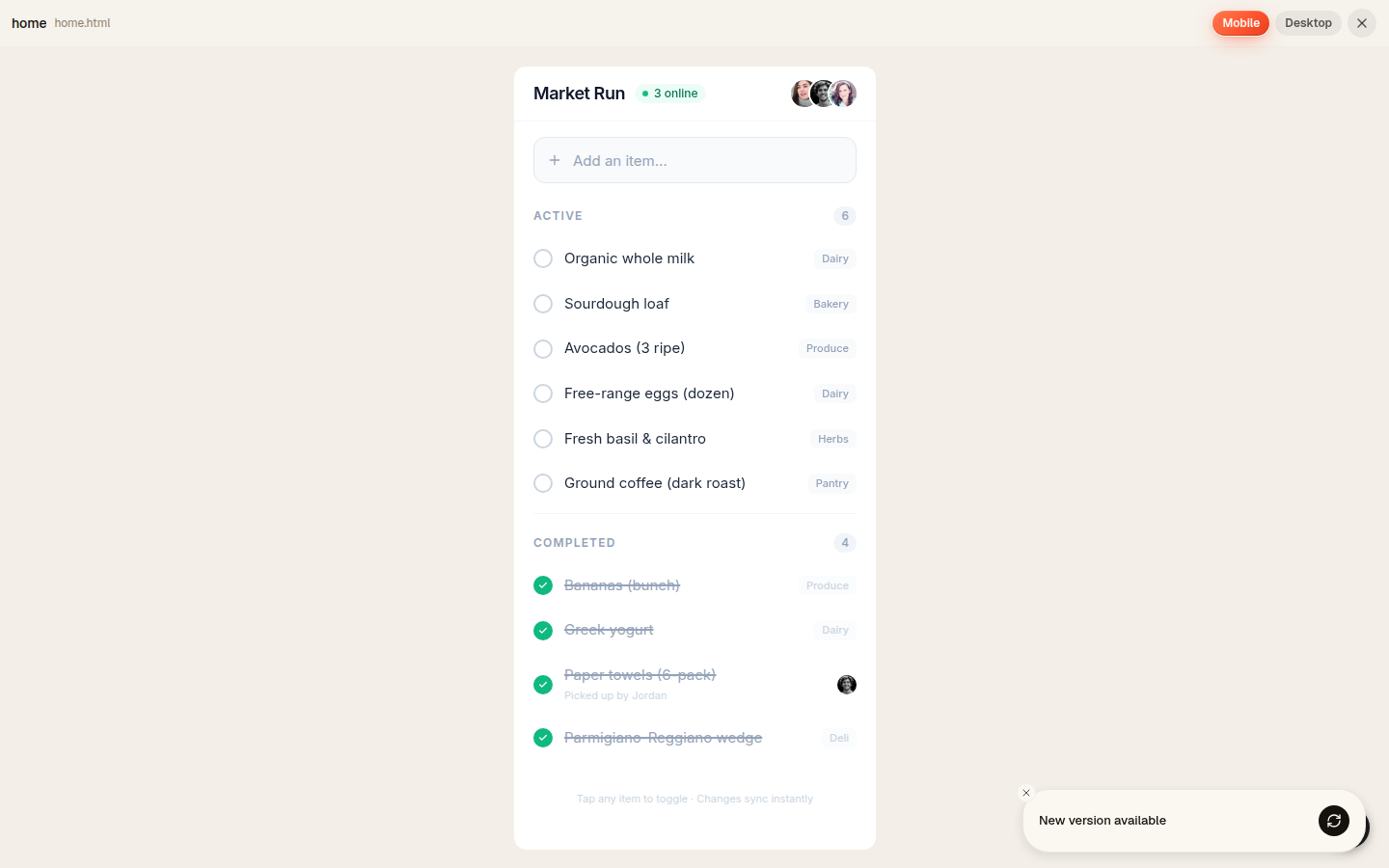
Here is what a finished omg.dev app looks like with all of this working at once: real shared data, three users online together, items toggling and syncing live. You did not set any of this up. It just works.
Step 7: Test it like a real user
Before you share your app, spend five minutes pretending to be a first-time visitor. Use the Mobile preview to see it at phone size. Tap through every button. Sign in as if you are a new user. Add some content. Check that it shows up.
The most common issues at this stage are things like buttons that do nothing, empty states that are confusing, or sign-in flows that are not obvious to someone who did not build the app.
Describe any problems in the chat and the AI fixes them. “The button on the home screen does nothing when I tap it” is enough detail to get a fix.
The Mobile / Desktop toggle in the top right is one tap. Same app, same data, just rendered at a phone width so you can check it looks right before sharing.
Step 8: Share it
Your app is already live the moment it is built. There is no deploy step. omg.dev handles that automatically.
You get a URL you can share. Anyone with the link can open it in their browser. For apps where users sign in, they create their own account and their data is kept separate from yours.
If you want people to feel like it is a proper app rather than a website, the same install-to-home-screen behavior that works for you works for your users too. They can add it to their phone and open it like a native app.
What to do when things go wrong
AI builders are not perfect. Sometimes the app does something unexpected or the change you asked for broke something else.
The first thing to try is describing exactly what you see: “the task list is now empty after I added a new task, it was working before.” The more specific you are, the better the AI can diagnose it.
If a change made things worse, use Versions to roll back. Every time the AI makes a change, a snapshot is saved. You can go back to any point in the history and start from there.
For bigger changes, like adding a completely new section or changing how the whole app is structured, do one thing at a time. Ask for one change, check it works, then ask for the next one. Trying to describe five changes in one message leads to more mistakes.
If you want to compare the available approaches, the guide to the best AI app builders this year explains which tools include the infrastructure needed to ship.
How this compares to other tools
If you have looked at other AI builders, you may have seen names like Lovable or Bolt come up. Both are good tools. The main difference is they are designed for a computer and they go straight from your prompt to a working app, skipping the design step.
That works fine if you are happy with whatever comes out. If you want to shape how it looks before committing to a build, or if you want to work from your phone, the approach is different. The AI app builder comparison summarizes Lovable, Bolt, v0, Replit, and the other major workflows in one place.
For people who want to write some code alongside AI, tools like Cursor are worth knowing about. The AI code editor comparison explains the code-first side of the landscape.
FAQ
Do I need any technical knowledge to build an app this way?
No. You need to be able to describe what you want in plain words. If you can explain an app idea to a friend, you can build it with an AI builder. You will not write code, touch a database, or set up any accounts beyond the builder itself.
How long does it take to build a first app?
Most people have something working and shareable within an hour. Simple apps, like a link-in-bio page or a poll, can be done in fifteen minutes. More complex apps with sign-in, multiple screens, and real-time updates take longer but are still same-day projects for most people.
What kinds of apps can I build without coding?
Shared lists, notes apps, dashboards, member directories, reminder tools, group polls, landing pages, AI chat interfaces, and simple games are all realistic. The template list in omg.dev is a good guide to what works well. Apps that need deep integrations with external services or very custom logic are harder, but most everyday app ideas are very buildable.
Will my app actually save data and work for other users?
Yes. When you build with omg.dev, a database and user sign-in are included from the start. Data your users create is saved and associated with their account. You do not need to set any of this up yourself.
Can I really build and manage an app from my phone?
Yes. omg.dev is designed to work on a phone. The dashboard installs to your home screen, the editor is mobile-friendly, and every step from designing to building to sharing works on a phone screen. Most other AI builders require a desktop browser to use properly.
What happens if the AI breaks something?
Every change creates a version snapshot you can restore from. If the AI’s latest change made things worse, you roll back to the previous version in one tap and try a different approach. Nothing is permanent.
Is the app live straight away, or do I have to do something to publish it?
It is live the moment it is built. There is no publish button or deploy step. You get a shareable URL immediately, and anyone with the link can use the app in their browser. You can also share it as an installable app for phones.