How to Build a Pressure Washing Quote App
Build a pressure washing quote app with editable rates, minimum fees, saved estimates, and clean customer quotes without writing code.
TL;DR
A useful pressure washing quote app turns surface measurements and your real costs into a price on site. Start with editable rates, condition factors, a minimum fee, and separate operator and customer views. Do not start with a large CRM. This pressure washing quote app starter includes an interactive estimate demo and a visible prompt you can edit before building.
Step 1: Define the one job your app must do
The first version should create a clear quote before you leave the property. That is the whole promise.
Avoid adding a calendar, route planning, payroll, reviews, and email campaigns at the start. Those features hide the quote flow under extra screens. They also make it harder to tell if the core app works.
A focused first version needs these inputs:
- Customer name and address
- Service or surface type
- Square footage or another simple measurement
- Rate for that service
- Job condition
- Extra costs such as travel or chemicals
- Minimum job fee
The output is a price the operator trusts and a summary the customer can read.
Step 2: Choose a clear pricing formula
Use a formula that fits on one line:
area × service rate × condition factor + extras
Then compare the result with your minimum job fee. Charge whichever number is higher.
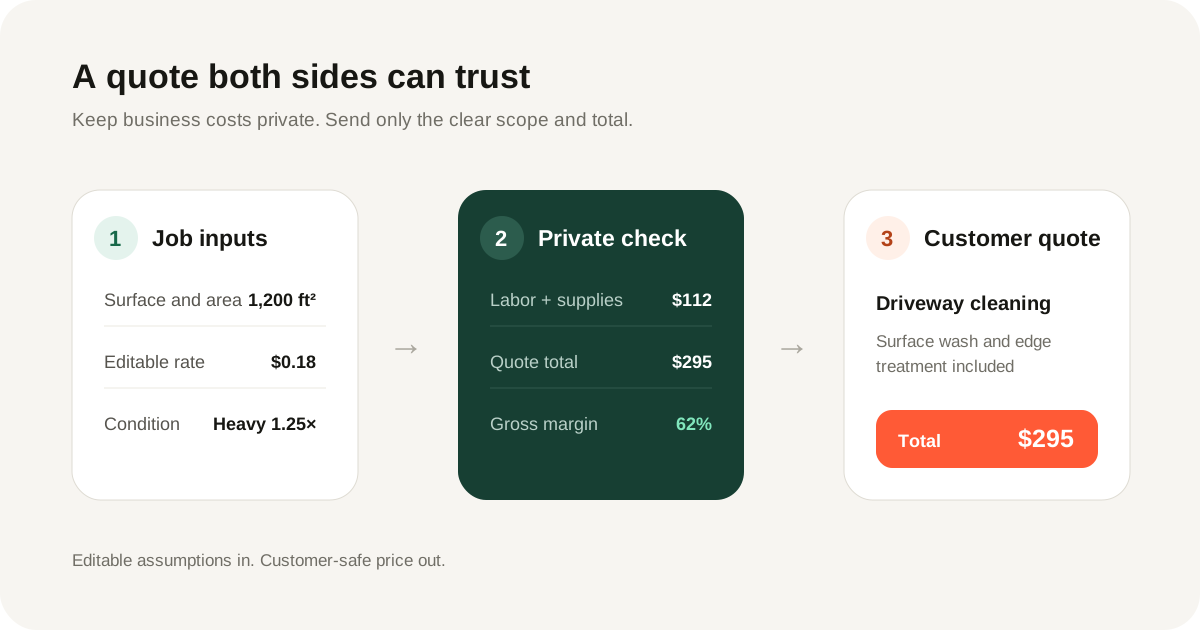
For example, 1,200 square feet at $0.18 per square foot gives $216. Heavy buildup at a 1.25 condition factor changes the base to $270. A $25 travel charge makes the final quote $295.
These numbers are examples, not market rates. Each operator must enter prices that match local costs and work speed.
For more worked examples, minimum-fee cases, and a reusable calculation checklist, see the pressure washing estimate calculator and formula.
Step 3: Make every rate editable
One fixed price list cannot work for every pressure washing business. Labor costs differ. Travel time differs. Surfaces and weather differ.
Store a rate preset for each common service:
- Driveway and concrete
- House siding
- Patio and pavers
- Deck
- Fence
- Roof soft wash
Let the operator edit every preset. Show the rate used on each quote line. Hidden assumptions create distrust, while visible numbers are easy to correct.
The app should save rate changes for the next quote. Re-entering prices on every job turns the app into a slow calculator.
Step 4: Keep internal costs away from the customer view
The operator needs more than a sale price. They need to know if the job is worth taking.
Track these numbers inside the app:
- Estimated labor hours and labor cost
- Chemical and material cost
- Travel charge and internal travel cost
- Gross profit
- Gross margin
Do not place those numbers on the customer quote. Build a separate customer-safe view with the service scope, optional extras, total, and terms.
This separation prevents an expensive mistake. The wrong data is never available on the screen used for sharing.
The customer-ready pressure washing quote template shows exactly which fields belong in the shared version and which should remain private.
Step 5: Add Good, Better, and Best options only when useful
Package choices can raise the value of a quote. They must still be easy to understand.
A driveway job could show:
- Good: surface clean
- Better: surface clean plus edge treatment
- Best: surface clean, edge treatment, and sealing
Do not force three packages onto every job. A simple house wash may need one clear price. Give the operator a switch to add options when they help.
Step 6: Save quote status and history
Saved quotes turn a calculator into a business tool. Use four plain statuses: Draft, Sent, Accepted, and Declined.
Each saved quote should keep the exact rates used at that time. If the operator changes a preset next month, old quotes must not change. Copy rates into the quote lines when the quote is created.
The quote list should show the customer, total, status, and last update. Add search later if the list becomes hard to scan.
Step 7: Design for a phone used outdoors
Most quotes happen near a truck, driveway, or job site. The phone may be bright, wet, or held in one hand.
Use large tap targets and high contrast. Keep the total visible while inputs change. Put the main Save quote action near the bottom thumb area.
Avoid dense tables. A vertical list of surfaces works better on a narrow screen. Each row can expand for rate, condition, and notes.
Loading states should keep the page shape stable. Show quote-row placeholders while saved data loads instead of replacing the whole screen with a spinner.
Step 8: Build it from the starter prompt
Open the pressure washing quote app starter on omg. Try the interactive estimate demo, review or copy the visible prompt, then tap Build this app.
The starter fills in a detailed prompt for the app. Edit the business name, services, colors, and workflow before sending it. omg builds the first version with persistent data already included.
Check the generated app in this order:
- Create a quote with two surfaces.
- Change one rate and confirm the total updates.
- Save and reopen the quote.
- Change a global preset and confirm the old quote stays unchanged.
- Open the customer view and confirm internal costs are absent.
- Test the whole flow on a phone.
What to do when things go wrong
The total changes after an old rate is edited
The quote is reading the live preset instead of its own saved rate. Store a copy of the rate on every quote line at creation time.
Small jobs are priced too low
Apply the minimum job fee after all area calculations. Show when the minimum changed the total so the operator understands the result.
The quote form feels slow in the field
Remove optional fields from the main path. Use saved defaults and reveal notes, chemicals, and travel only when needed.
Customers can see margin or labor cost
Do not hide internal fields with a visual toggle on one shared screen. Use a separate customer-safe data shape and view.
FAQ
What should a pressure washing quote app include?
Start with customer details, surfaces, measurements, editable rates, condition factors, extras, and a minimum fee. Add saved quote status and a separate customer view next.
How do I price pressure washing by square foot?
Multiply the measured area by your own service rate. Apply condition and access factors, then add real extras and compare the result with your minimum fee.
Should I use one pressure washing rate for every surface?
No. Concrete, siding, decks, fences, and roof soft washing have different time, chemical, and risk profiles. Give each service an editable preset.
Can I build a pressure washing estimate app without coding?
Yes. Start from the interactive omg starter, edit the prompt, and let the builder create the data model and app screens.
How do I stop old quotes from changing when rates change?
Copy the current service rate into each quote line when the quote is created. Old quotes then keep their original numbers while new quotes use the new preset.
What should customers see on a pressure washing quote?
Show the property, service scope, optional items, total, validity period, and acceptance terms. Keep labor cost, chemical cost, profit, and margin in the operator view.