Best AI Code Editors 2026: Cursor, Windsurf, Copilot, Zed
The best AI code editors in 2026 ranked by use case. Cursor, Windsurf, GitHub Copilot, and Zed AI compared so you can pick the right one fast.
TL;DR
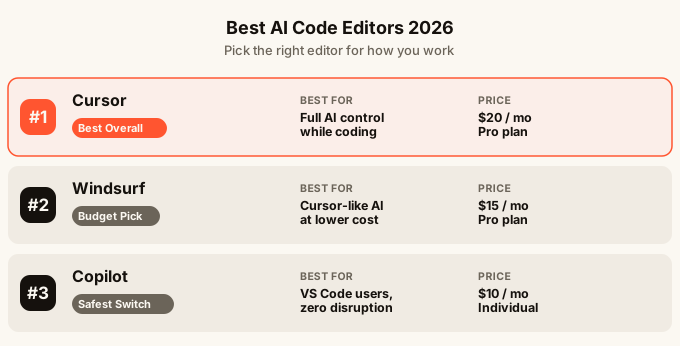
Cursor is the best all-round AI code editor for most people who already know how to code. Windsurf is the closest competitor and slightly cheaper. GitHub Copilot is the safest choice if you are already inside VS Code and do not want to change anything. Zed AI is fast and worth watching but still maturing. If you are not a developer and just want to ship an app, an AI app builder like omg.dev gets you further faster than any of these editors.
The quick comparison
| Editor | Best for | Price (month) | Works on phone |
|---|---|---|---|
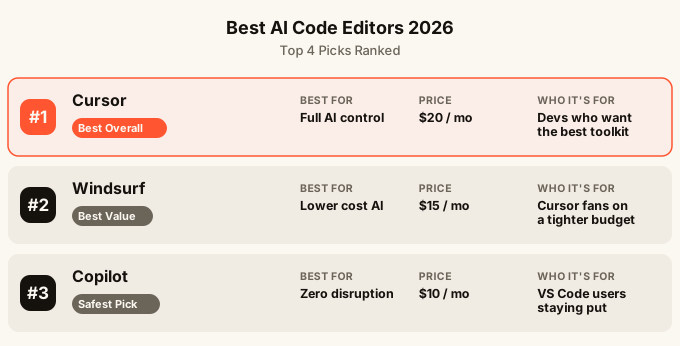
| Cursor | Developers who want full AI control | $20 (Pro) | No |
| Windsurf | Developers who want Cursor at lower cost | $15 (Pro) | No |
| GitHub Copilot | VS Code users who want zero disruption | $10 (Individual) | No |
| Zed AI | Speed lovers, early adopters | Free (AI costs extra) | No |
None of these work on a phone. All of them require you to write code or at least read it. Keep that in mind as you read.
The shortest answer to the common head-to-heads
- Cursor vs Windsurf: both are AI-first editors with multi-file agents. Cursor is the safer default when ecosystem and learning resources matter; Windsurf is worth considering when its workflow or price fits you better.
- GitHub Copilot vs Cursor: choose Copilot if you want AI inside the editor and setup you already use. Choose Cursor if you want the editor itself designed around AI and expect to delegate changes across several files.
- GitHub Copilot vs Windsurf: Copilot minimizes disruption; Windsurf asks you to switch editors in exchange for a more agent-led workflow.
- Cursor vs Claude Code: choose Cursor for visual, editor-led work and inline suggestions. Choose Claude Code when you are comfortable in a terminal and want to delegate repository-wide tasks.
- Replit vs Cursor: choose Replit for a browser-hosted development environment that can also run and deploy the project. Choose Cursor for editing a codebase on your own computer.
These are workflow choices, not rankings of which model is smartest. Start with where the code lives, whether you want an editor or terminal, and how much of each change you want to supervise.
What is an AI code editor?
An AI code editor is a text editor for writing code that has an AI built into it. The AI can finish your sentences, suggest the next block of code, explain errors in plain English, and sometimes rewrite whole files when you describe what you want.
Think of it like autocomplete on your phone keyboard, except it understands the logic of what you are building, not just the words. The good ones feel like pairing with a fast, tireless co-author who has read every programming tutorial ever written.
These tools are aimed at people who already write code, or who are willing to learn. They are not point-and-click app builders. You still spend most of your time in files, reading and editing text.
If that sounds like a lot of work, jump to the section near the end about no-code alternatives. The question of how to build an app without coding is a different one, and worth asking first.
Cursor
Cursor is a full code editor built from scratch around AI. It is not a plugin. The whole thing was designed so AI assistance is everywhere: in the autocomplete, in a side chat, and in a special “Composer” mode where you describe a change and the AI rewrites multiple files at once.
What Cursor does well
The multi-file editing is where Cursor pulls ahead. You can say “add a dark mode toggle to this app” and the AI will find every relevant file and update them together. Most AI coding tools only touch one file at a time, which gets messy fast on a real project.
Cursor also lets you tag specific files or functions in your chat, so the AI has exactly the context it needs. That sounds small, but it means fewer confused or wrong answers.
Cursor is a VS Code-based desktop editor with AI woven into autocomplete, chat, and multi-file changes. That makes it a replacement for your editor, not an assistant you add to an unrelated app.
Where Cursor falls short
It is not free. The free tier is limited enough that serious use means paying $20 a month. There have also been complaints about the AI making bold changes to code that are hard to untangle. Versions help, but it can still feel chaotic when a big edit goes sideways.
Who should use Cursor
Developers working on real projects who want the most capable AI assistance available right now. Freelancers, startup engineers, and side-project builders who write code every day.
Windsurf
Windsurf is built by Codeium and is Cursor’s most direct rival. The editing experience is very similar. The AI can chat with you, rewrite files, and understand your whole codebase.
What Windsurf does well
The price. At $15 a month for the Pro plan, it undercuts Cursor by $5. That is not life-changing, but over a year it adds up.
Windsurf also has a feature called Cascade, which keeps track of what you asked the AI to do across a whole conversation. This means the AI remembers earlier decisions in the same session, which reduces the “wait, you already did that” frustration.
The practical distinction is workflow: Cursor is the established default for an AI-first editor, while Windsurf appeals to developers who prefer its agent-led flow or pricing.
Where Windsurf falls short
The community around Cursor is bigger. More tutorials, more people sharing tips, more plugins. Windsurf is catching up but Cursor still has a head start on the ecosystem of learning resources.
Who should use Windsurf
Developers who want the Cursor experience but want to save a little money, or who find Cascade’s conversation memory useful.
GitHub Copilot
GitHub Copilot is the original AI coding assistant. Microsoft launched it inside VS Code in 2021, and it has been the default choice for millions of developers ever since.
What Copilot does well
Copilot works inside VS Code without you changing anything about how you work. If you already use VS Code, you install Copilot, and it starts suggesting code. That is it. No learning curve, no new interface.
It is also the safest choice for people at companies with IT policies. Because it is a Microsoft product built into a Microsoft tool, getting it approved is usually easier than asking for permission to install something newer.
Compared with Cursor, Copilot changes less about your setup. Cursor gives AI a larger role in the editor itself; Copilot is easier to add without moving your existing workflow.
Where Copilot falls short
Copilot is a plugin, not a purpose-built AI editor. The chat and multi-file editing features exist but feel bolted on compared to Cursor or Windsurf, where the whole tool was designed around them from the start. If you want to do big AI-driven rewrites across your project, Cursor handles it more cleanly.
Who should use Copilot
Developers already using VS Code who want AI suggestions with zero disruption. Also good for students and beginners, since VS Code is what most tutorials use.
Zed AI
Zed is a new code editor built to be fast above everything else. Opening a file in Zed feels instant. The editor does not slow down on large projects the way VS Code sometimes does. The AI features are added on top of that fast foundation.
What Zed does well
Speed. If you spend all day in a code editor, the difference between an editor that opens files instantly and one that lags by half a second adds up across hundreds of interactions. Zed is noticeably snappier.
Zed also has real-time collaboration — multiple people editing the same file live, like Google Docs for code — built in. That feature is rare in code editors and makes pair programming much easier.
Where Zed falls short
Zed is still younger than the others. The plugin library is smaller, some languages have limited support, and the AI features are not yet as deep as Cursor’s. You will hit rough edges.
The pricing model is also less straightforward. Zed itself is free, but you pay for the AI model usage separately, which can be hard to predict month to month.
Who should use Zed
Developers who care a lot about editor speed, want to try something new, and do not mind being an early adopter. Also worth trying if you do a lot of collaborative coding with a team.
The command-line tools: Claude Code and others
Alongside these editors, a new category of AI coding tools has appeared: tools you run in a terminal rather than a visual editor. Claude Code is the main example.
These tools are powerful for certain tasks like refactoring or running large automated changes across a whole project. They are not for beginners. The Claude Code slash commands reference explains the terminal workflow. Compared with Cursor, Claude Code trades a visual editor for more direct task delegation from the command line.
How to choose the right AI code editor
Ask yourself three questions.
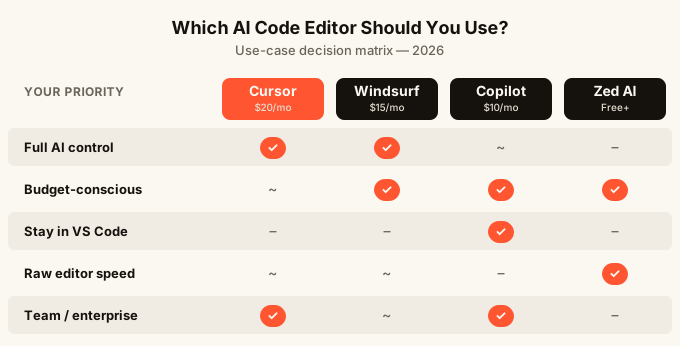
First: do you already use VS Code? If yes, start with Copilot. You lose nothing by trying it, and if it does not satisfy you, you can switch.
Second: do you want the most capable multi-file AI editing available? Choose Cursor. Pay the $20. The quality gap over a free or cheaper option is real on complex projects.
Third: are you price-sensitive and willing to try something slightly newer? Windsurf gives you most of what Cursor does for less money.
Zed is worth bookmarking and revisiting in six months. It has real potential, especially on speed and collaboration, but right now it is behind on features.
What if you are not a developer?
All four tools above assume you can write code, or at least read it. They are text editors. The AI helps you write code faster; it does not remove the need to write code entirely.
If you want to build and ship an app but you are not a developer, the answer is not a better code editor. It is a different kind of tool altogether.
This is where AI app builders come in. Tools like omg.dev let you describe what you want in plain English, see a design before anything is built, and ship a working app without touching a code file. The apps have user sign-in, a place to store data, real-time features, and hosting, all included with nothing to set up.
The gap between “I want to build an app” and “I need an AI code editor” is bigger than most articles admit. If you are on the non-developer side of that gap, reading a comparison of Cursor vs Windsurf is not the article that will actually help you ship something.
For a full look at the no-code side of this world, the best AI app builder 2026 guide is the right starting point.
FAQ
Which AI code editor is best for beginners? GitHub Copilot inside VS Code is the most beginner-friendly. VS Code is what most coding courses use, so you will find help easily. Copilot adds AI suggestions without changing the tools you are already learning.
Is Cursor worth $20 a month? If you write code regularly, yes. The multi-file editing alone saves enough time to justify the cost for most active developers. If you write code occasionally, start with the free tier and see how often you hit the limits.
Can I use these editors on my phone? No. All four editors in this list require a laptop or desktop computer. If you want to build apps from your phone, you need a different kind of tool.
What is the difference between Cursor and Windsurf? Mostly workflow, price, and community size. Both do multi-file AI editing well. Cursor has more tutorials and a larger user base. Windsurf has a different agent workflow called Cascade. Check current plan pages before buying because AI-tool prices and usage limits change frequently.
Do I need an AI code editor if I am using an AI app builder? No. AI app builders handle the code for you. You describe what you want, the AI builds it. Code editors are for people who write code themselves and want AI to assist that process.
Is Zed AI free? Zed the editor is free. The AI features use a model you connect yourself, and that usage may cost money depending on how much you use it. Budget is harder to predict than with flat-rate tools like Cursor or Copilot.
Will these tools replace developers? Not yet. They make developers faster, especially on repetitive tasks. But the AI still makes mistakes, sometimes confident-sounding ones, and someone needs to spot and fix them. Knowing how to read code is still the most important skill, even if you write less of it than before.